New org charts, redesigned profiles, and allocation change summaries
Over the past two weeks we rebuilt org charts around four new views, gave profiles a full redesign, and updated allocation reviews to show change summaries.
New org charts
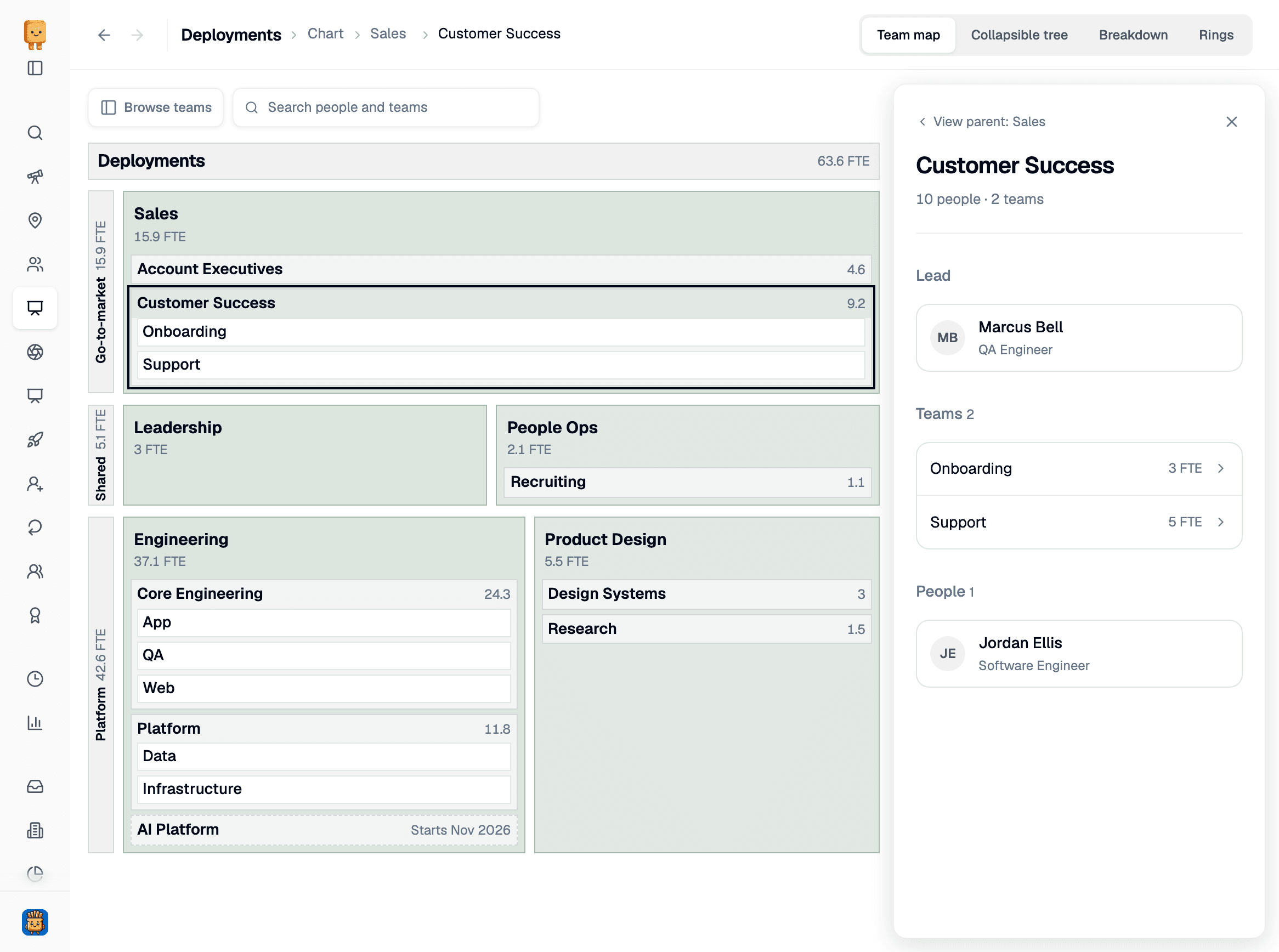
We've added four ways to view the layout of your organization. Click View chart on any org view to open them, and switch between Team map, Collapsible tree, Breakdown, and Rings in the top right.
Team map
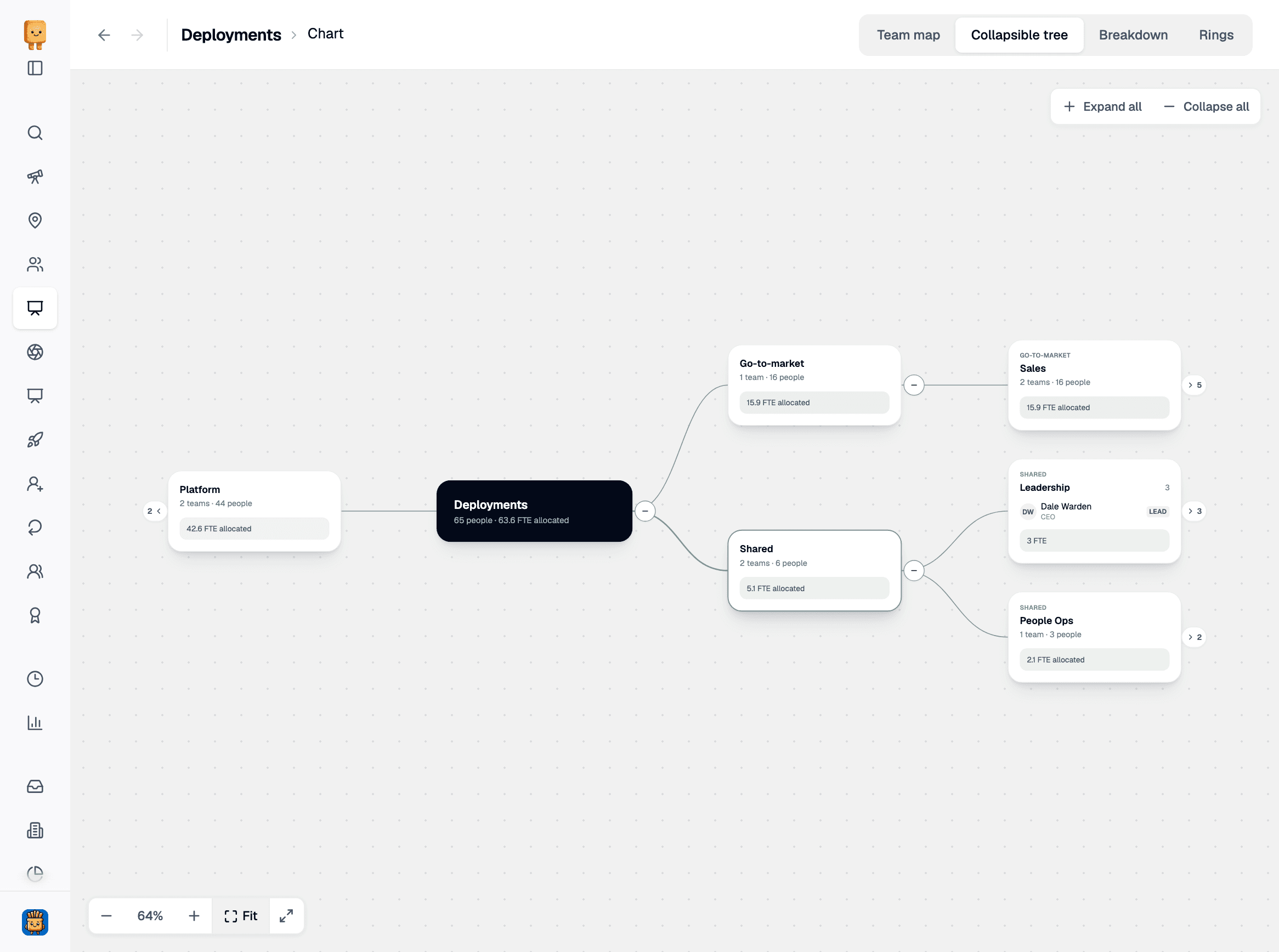
Collapsible tree
Breakdown and Rings
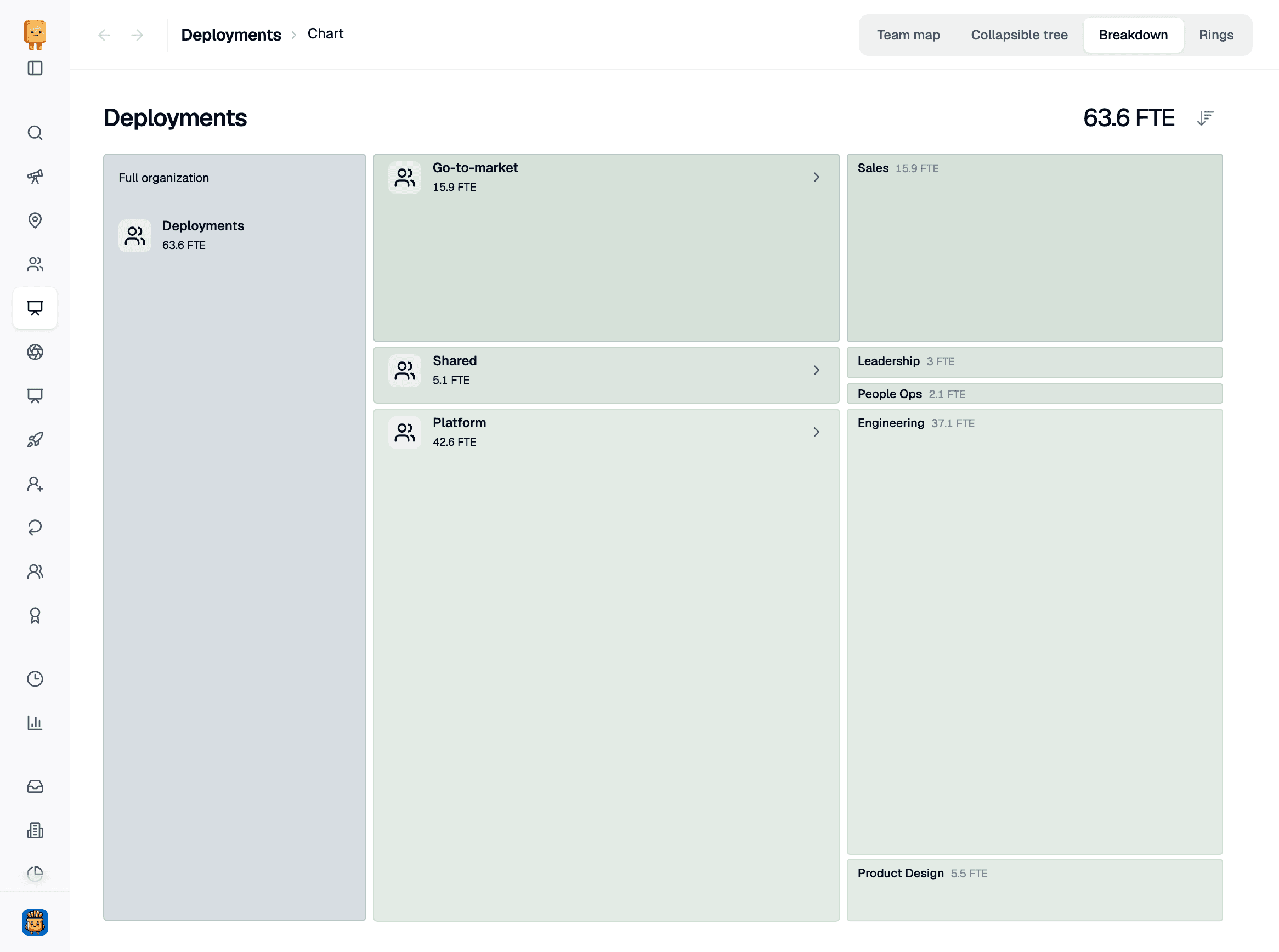
- Breakdown stacks your org from left to right, with each block sized by its FTE. Click a block to zoom in
- Rings shows the same hierarchy as a sunburst, from functional types in the middle out to teams and people
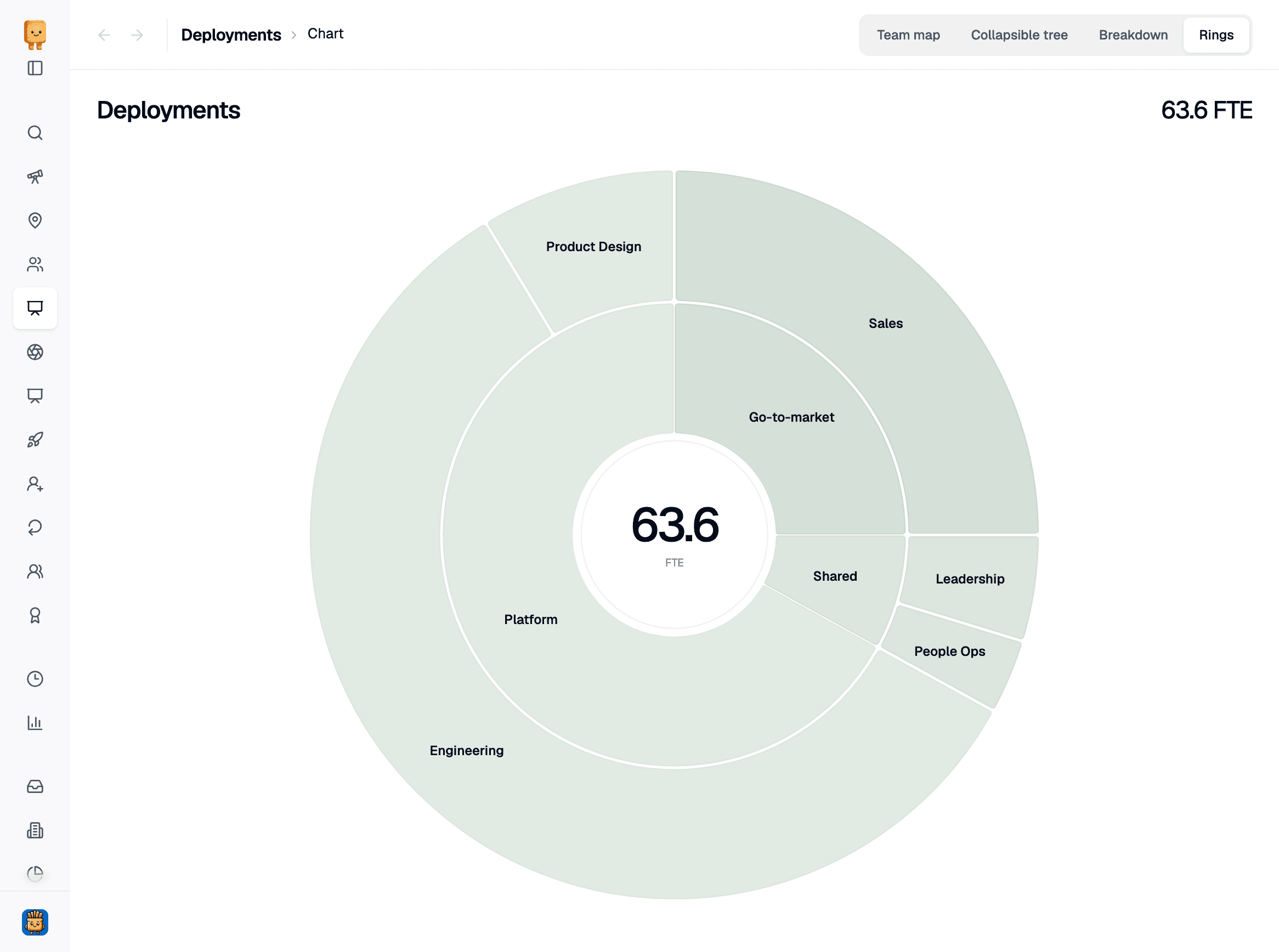
Org view admins can turn the chart on in Manage org view → Display with Enable team chart page.
Redesigned profiles
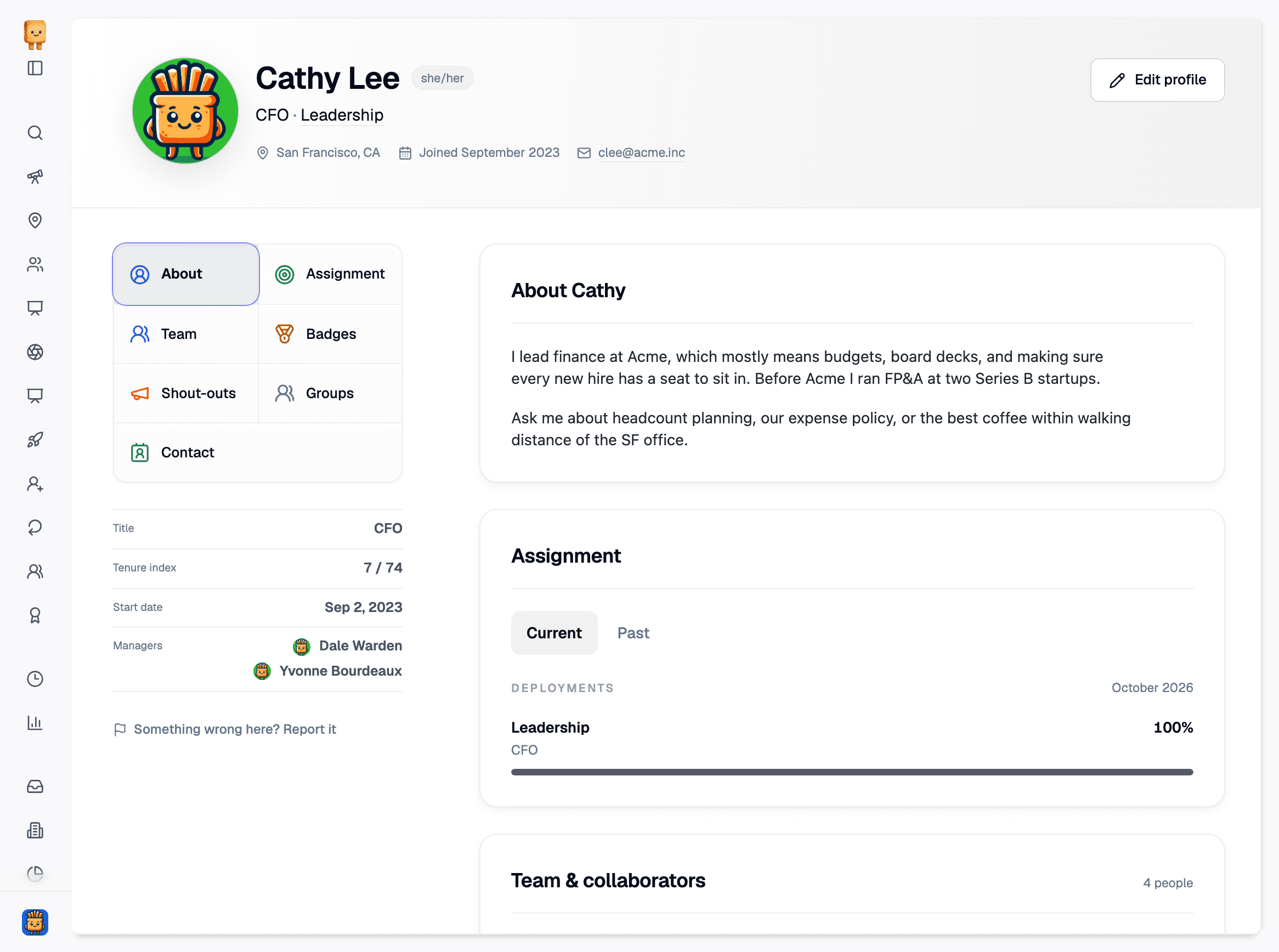
Profiles are now a single page instead of tabs. The header shows someone’s pronouns, title, team, location, start date, and email, which you can copy with a click.
- Quickly jump between About, Assignment, Team, Badges, Shout-outs, Groups, and Contact
- See title, tenure index, start date, and every manager at a glance
- Assignment shows current allocations and splits past ones by year
- Click a profile photo to see it uncropped
Add managers by hand
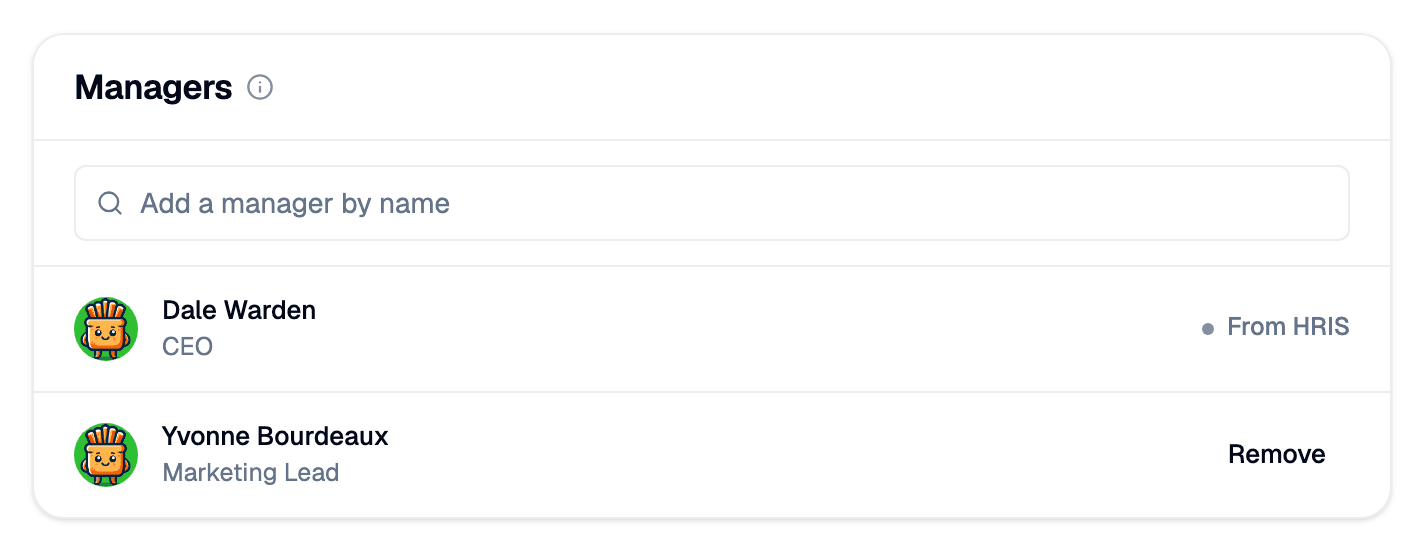
Admins can now add managers to a profile that your HRIS doesn’t track. Turn on "Admins can add managers" in My organization → Branding & profiles, then use the Managers card when editing a profile.
Tenure index for all employees
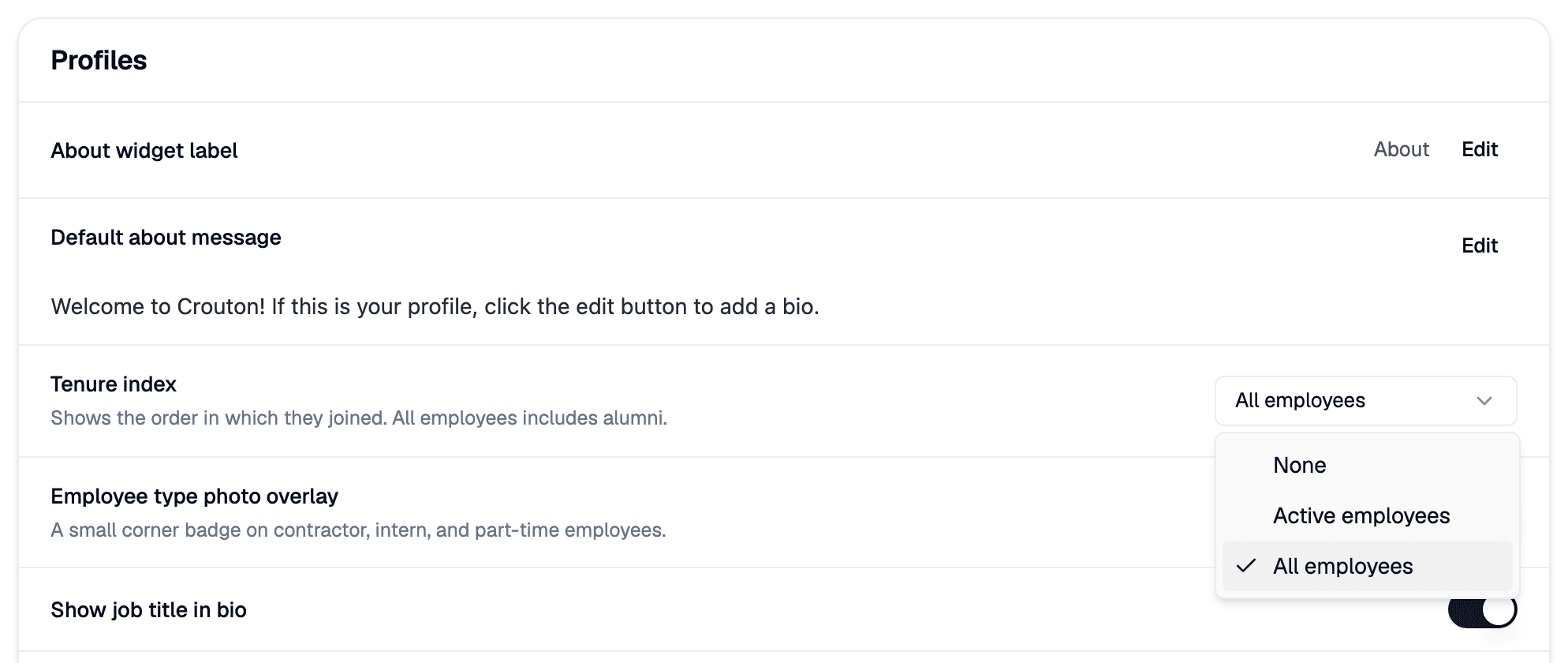
Tenure index is now a single setting in My organization → Branding & profiles. Choose Active employees to rank people who work here now, All employees to include alumni, or None to hide it.
Allocation review: What changed
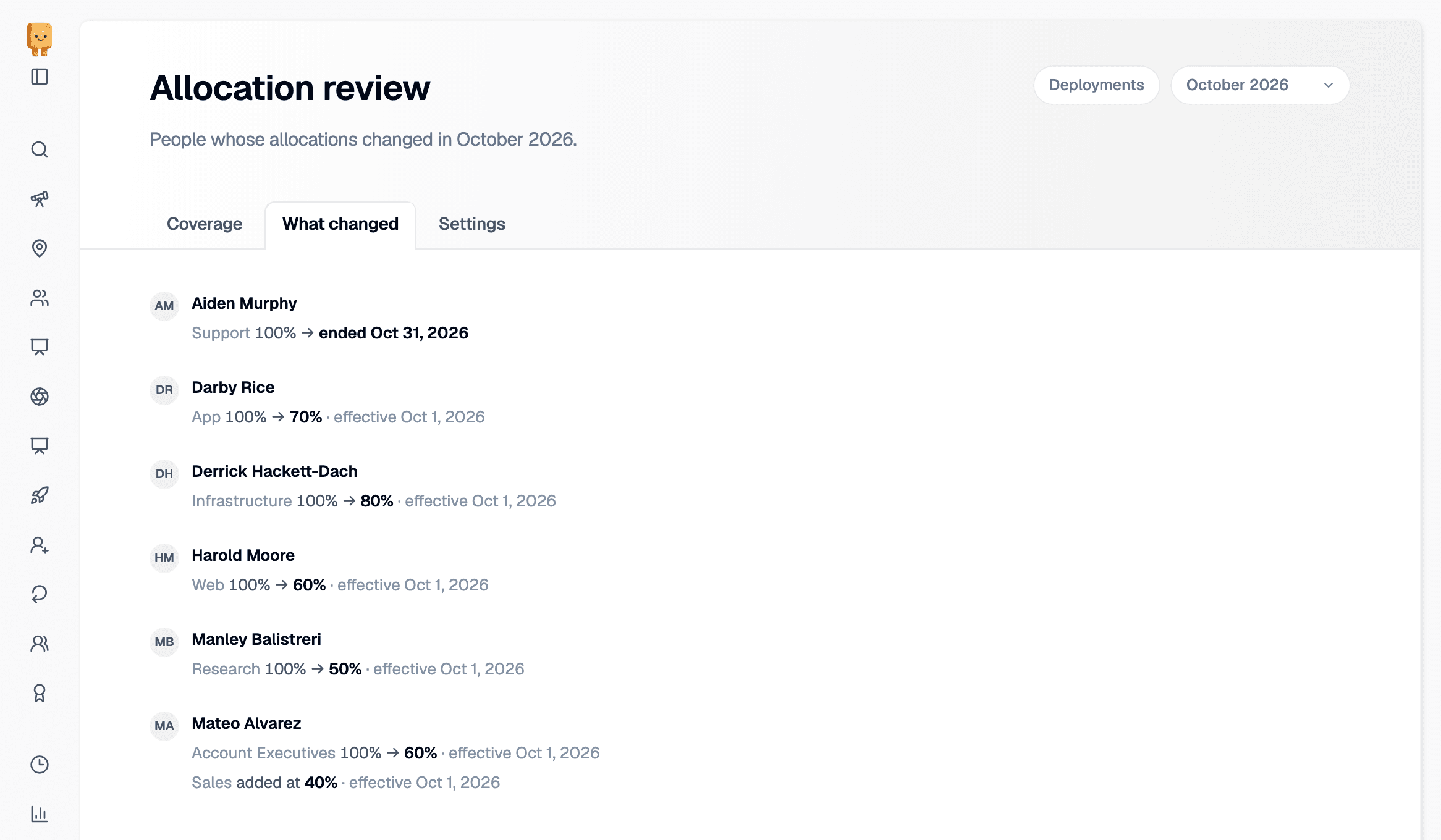
Allocation review has a new What changed tab for admins. It lists everyone whose allocations changed in the selected month, with each change shown before and after.
Open headcount alerts
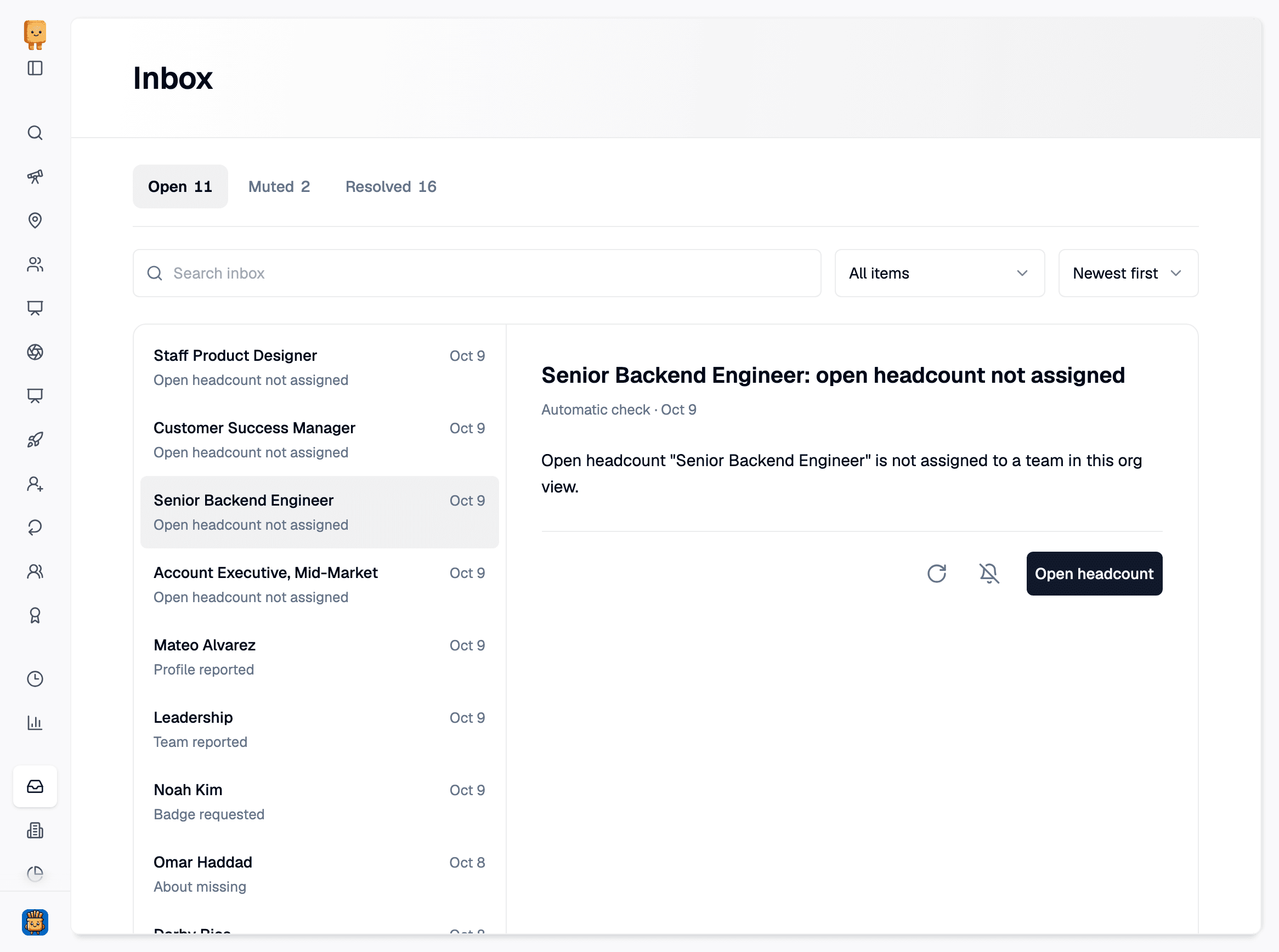
Org views can now flag open headcount that isn’t assigned to one of their teams. In Manage org view → Alerts, turn on Ensure every open headcount is assigned.
- Each unassigned role gets an item in the Inbox, with a link straight to it on the Open headcount page
- Items resolve themselves once the role is assigned or no longer open
- Open headcount synced from Ashby is now named after its published job posting, and only roles with a published posting are included